This package provides:
This package consumes:

https://atom.io/packages/linter-elm-make
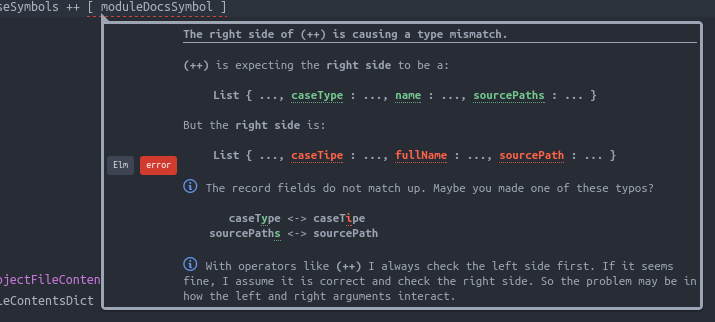
Lint your Elm files in Atom with linter and elm-make.
Edit > Preferences > Install) or by running these from the command line:apm install linter
apm install language-elm
apm install linter-elm-make
If you want to use Nuclide in lieu of linter, check this compatibility guide. You may also use atom-ide-ui instead.
You can also use the Intentions package instead of the default Quick Fix UI.
which elm-make (Unix/Linux) or where.exe elm-make (Windows) from the command line and set the result as your executable path in this installed package's configuration.Lint On The FlyBy default, linting is only done after saving the file. If you want to lint while typing, turn on the Lint On The Fly option in the package settings. Also make sure that the Lint on Change option (Lint As You Type for Linter v1) is enabled in the linter package settings.
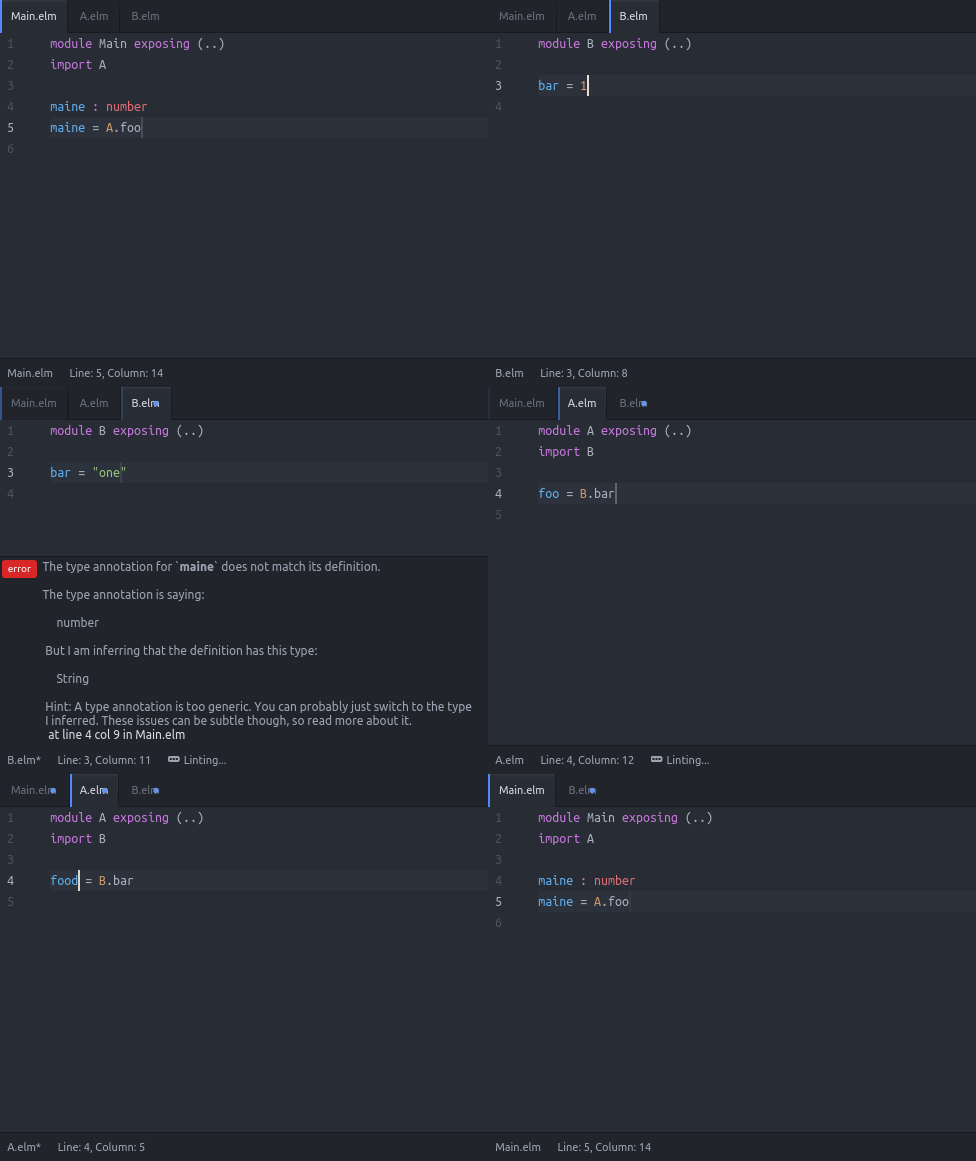
NOTE: Linting on the fly is experimental and currently works by copying the source files to the Work Directory (or to a temporary directory if Work Directory is blank) and running elm-make there.
Always Compile MainIf enabled, the main file(s) will always be compiled instead of the active file. The main files can be set using Linter Elm Make: Set Main Paths. If not set, the linter will look for Main.elm files in the source directories. Take note that if this is enabled, modules unreachable from the main modules will not be linted. Disabled by default.
Report WarningsShow elm-make warnings. Enabled by default.
Show Inferred Type AnnotationsNote: This will only work if Report Warnings is also checked.
Lint On The Fly disabled: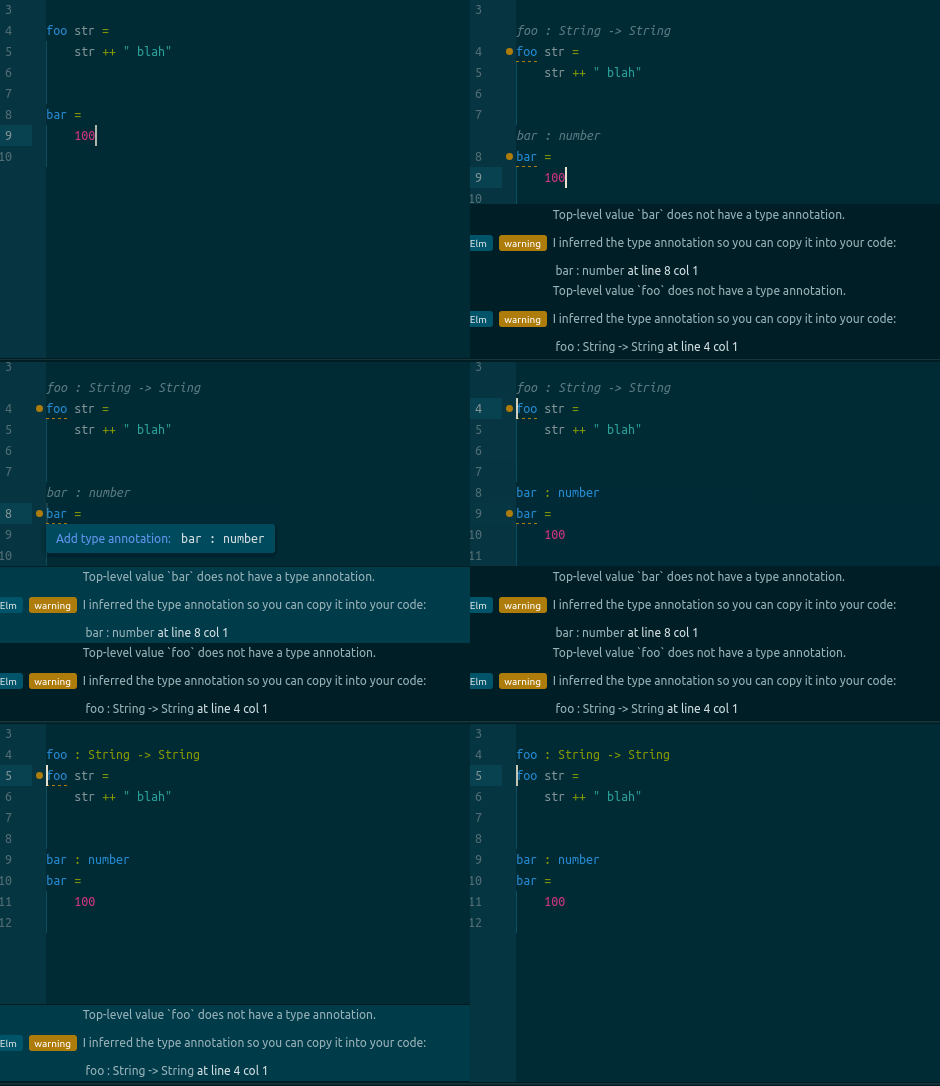
Lint On The Fly enabled: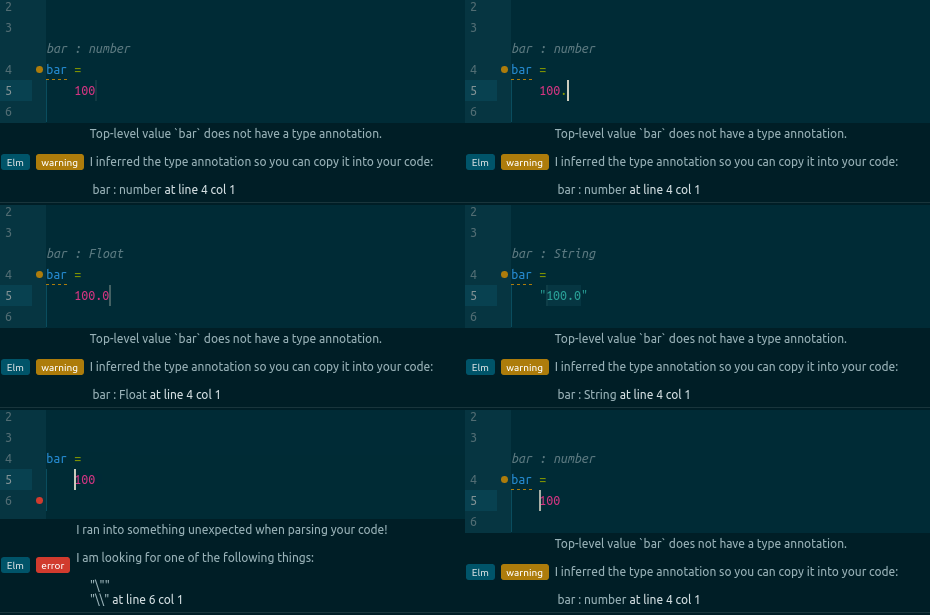
Use DatatipsThis is an experimental feature that uses Datatips instead of the Diagnostics UI (from Nuclide or atom-ide-ui) to show the issues. This also enables integration with the elmjutsu package.
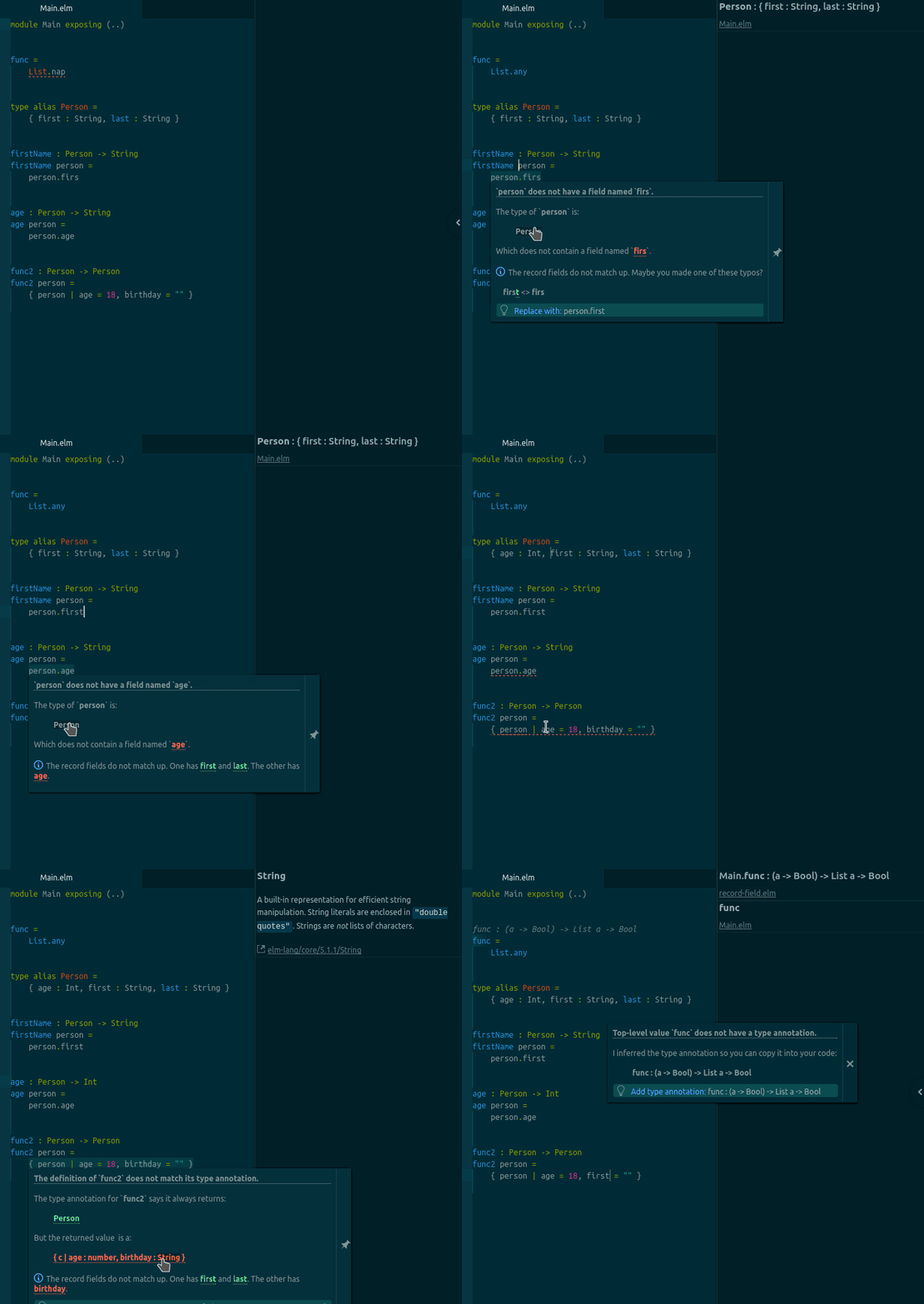
Datatip: Toggle command instead of mousing over the problematic text range.Work DirectoryIf this is not blank, the linter will copy the source files from the project directory into this directory and use this as the working directory for elm-make. This can be an absolute path or relative to the path of elm-package.json.
If Lint On The Fly is disabled, this option will prevent the linter from using your project directory's elm-stuff. This can be useful if you're using other tools to build your output files.
If this is blank and Lint On The Fly is enabled, the linter will create a temporary directory before running the first linting process for the project. It will then copy the source files from the project directory into the temporary directory. The linter will do all of this again when Atom gets restarted. Setting the value of Work Directory will shorten the duration of the first lint after a restart since the linter does not need to create a temporary directory and copy files anymore.
If this is blank and Lint On The Fly is disabled, the linter will use the project directory as the working directory for elm-make.
If this option is not blank, a file watcher will watch the project directory for source file changes and synchronize those with the work directory.
IMPORTANT WARNING: If the current work directory is inside the project directory and you want to change the value of Work Directory in the settings, delete the current work directory first! Else, the linter will consider that directory as part of your project!
If this option makes no sense and/or is confusing, just leave it blank. 😃
Linter Elm Make: Quick FixMove your cursor to a problematic text range and invoke this command to show the possible fixes. Select a fix from the list to apply it to your code.
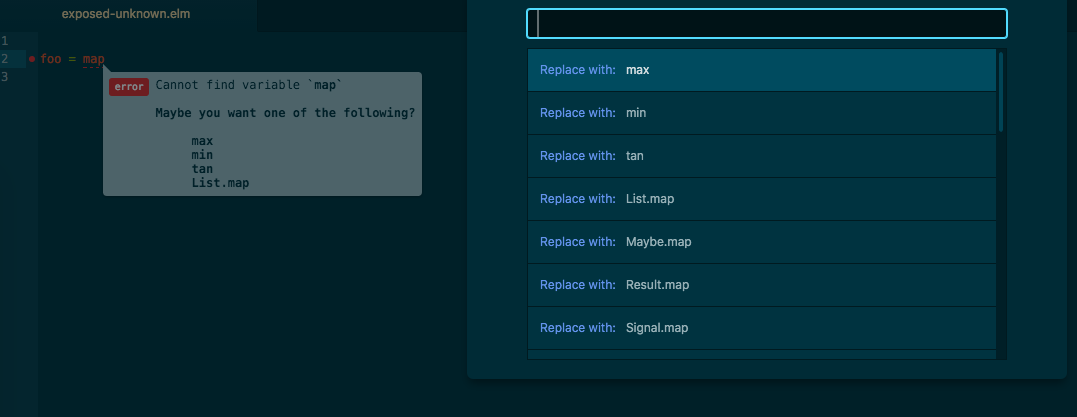
Intentions: Show command instead.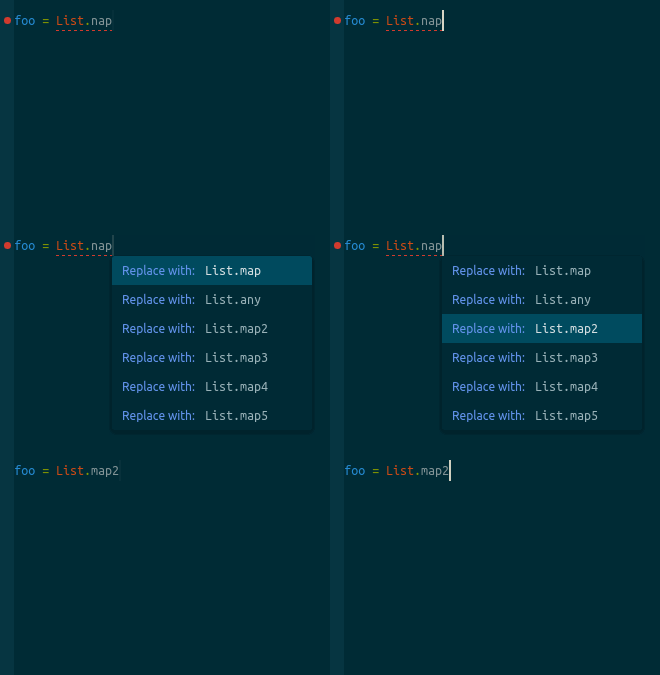
Diagnostics: Show Actions At Position command instead, or click on the appropriate button from the panel. You can uncheck Show Code Actions in the Settings view if you do not want to show the buttons.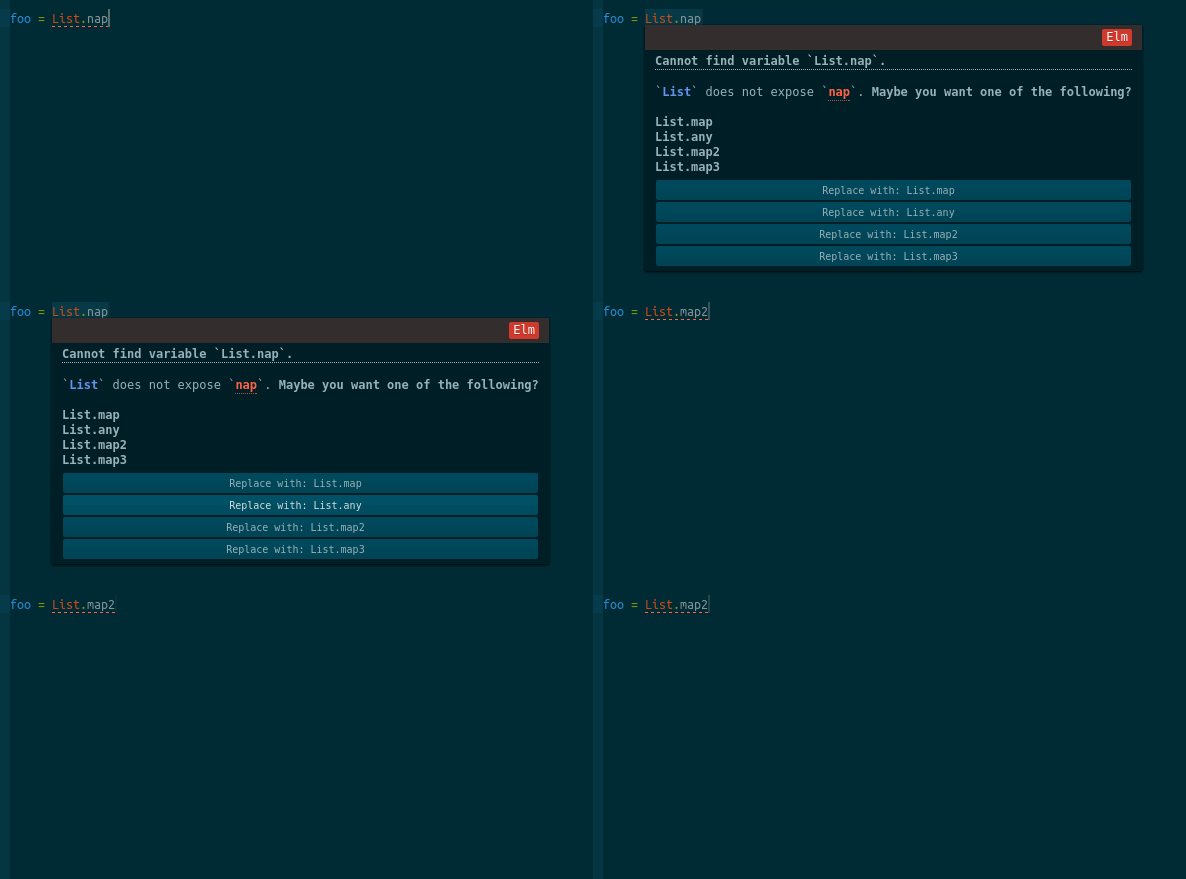
The number of available fixes for a given cursor position is shown with the linter tooltip and in the status bar.
elm package installLinter Elm Make: Quick Fix AllFixes all issues in the active text editor in one go. If there is more than one fix for an issue, it will choose the first from the list.
Linter Elm Make: Set Main PathsSets the main paths of the project and saves them to linter-elm-make.json.
Example:
{
  "mainPaths": ["Todo.elm", "Test.elm"]
}
The main paths are only relevant if Always Compile Main is enabled. See above.
Linter Elm Make: Clear Project Build ArtifactsDeletes the .elmi and .elmo files in your project's build artifacts directory (e.g. elm-stuff/build-artifacts/0.17.0/user/project/1.0.0). This is useful after toggling Lint On The Fly and/or Always Compile Main to prevent confusing lint results. If using a work directory or temporary directory, the artifact files of that directory will also be deleted.
Linter Elm Make: Toggle Lint On The FlyLinter Elm Make: Toggle Always Compile MainLinter Elm Make: Toggle Report WarningsHere is an example:
'atom-text-editor:not([mini])[data-grammar^="source elm"]':
  'shift-f6': 'linter-elm-make:quick-fix-all'

  # Add this to use the default UI:
  'f6': 'linter-elm-make:quick-fix'

  # Add this instead if you want to use the Intentions UI:
  'f6': 'intentions:show'

  # Add this instead if you want to use `atom-ide-ui`:
  'f6': 'diagnostics:show-actions-at-position'

'.linter-elm-make atom-text-editor[mini]':
    'f6': 'core:confirm'
Add them to your keymap.cson or bind them from Settings > Keybindings.
Linter: LintLinter v2:
Linter Ui Default: NextLinter Ui Default: PreviousLinter Ui Default: Toggle Active EditorLinter v1:
Linter: Next ErrorLinter: Previous ErrorLinter: ToggleAlso check out the settings view for the linter and linter-ui-default (for Linter v2) packages for the available options.
The boilerplate code here is repurposed from linter-hlint. Much thanks to its contributors.